
At a glance
Here, you’ll learn how to edit and update the Telecommunications Service map in LogIE, including:
- Adding a new box to the map with details like services provided
- Changing the location of an existing box or updating the services it shows
- Removing a box from the map
Step-by-step example
Scenario: You need to update the Telecommunication services in LogIE by adding new services and removing others.
1) To begin, switch to the Concept of Operation module. This module is not available on all emergency pages. When available, it should look similar to the image below.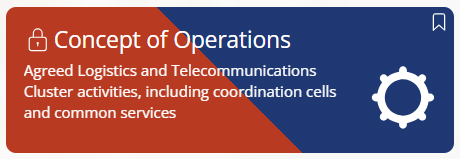
2) Adding a new box on the map for a specific location. If you need to add services to a place that is not yet on the map, follow these steps: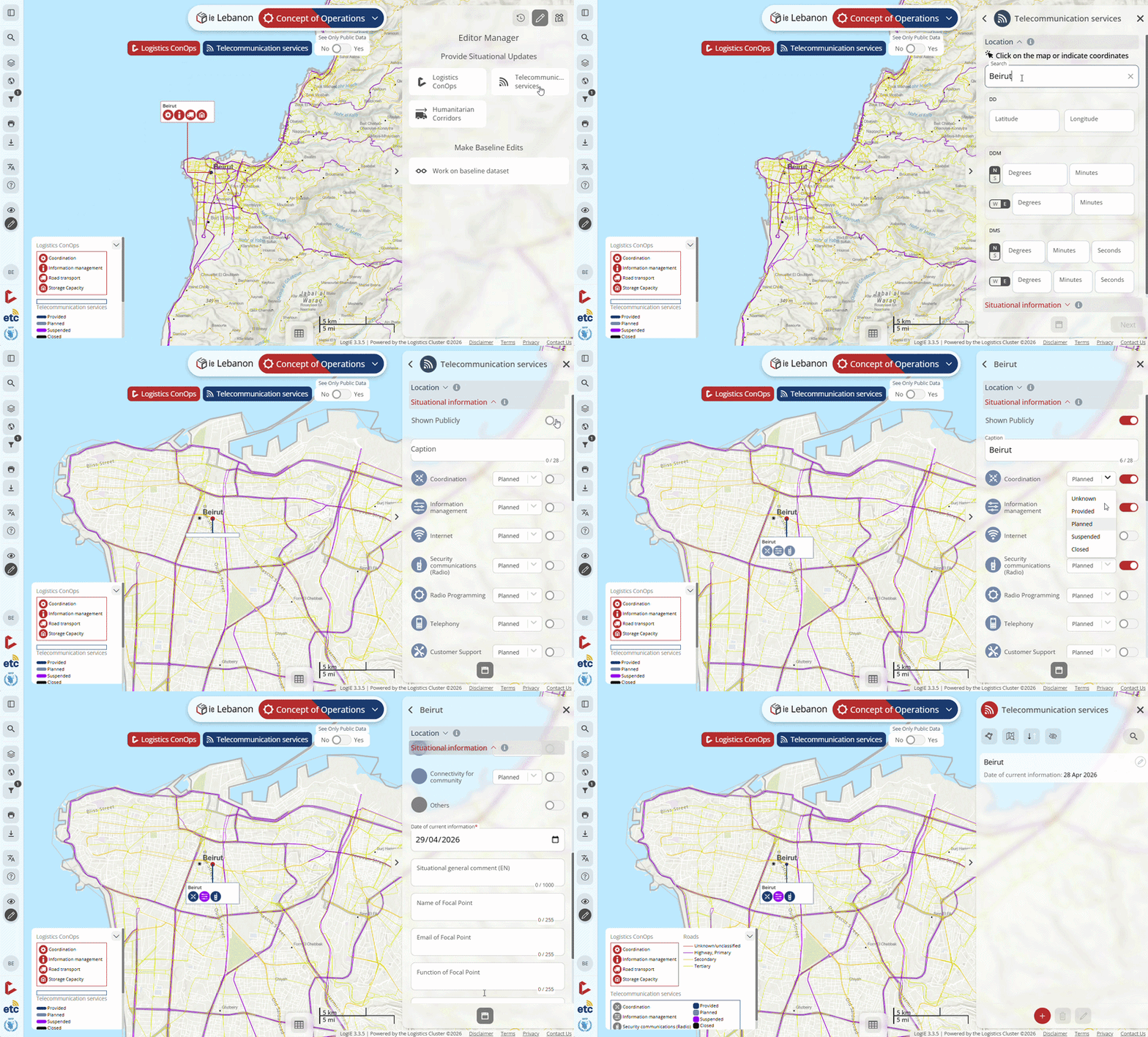
- Click on "Telecommunications services" under "Provide situational updates" in the Editor Manager.
- Click the plus (+) button at the bottom of the screen to create a new entry.
- Locate the place using one of these methods:
- Search for the place in the Editor Panel’s search box.
- Enter the coordinates manually.
- Click directly on the map to select the location.
- Add the necessary details:
- In the caption field, enter the text that will appear at the top of the box. Typically, this shows the name of the location (e.g., city) where the services are provided.
- Use the toggle switches to select the services provided.
- For each service, use the dropdown to select its status: Provided, Planned, Suspended, or Closed.
- Fill in any additional relevant information.
3) Modifying the services displayed in a box on the map. To update services for an existing box that appears on the map, you have two options: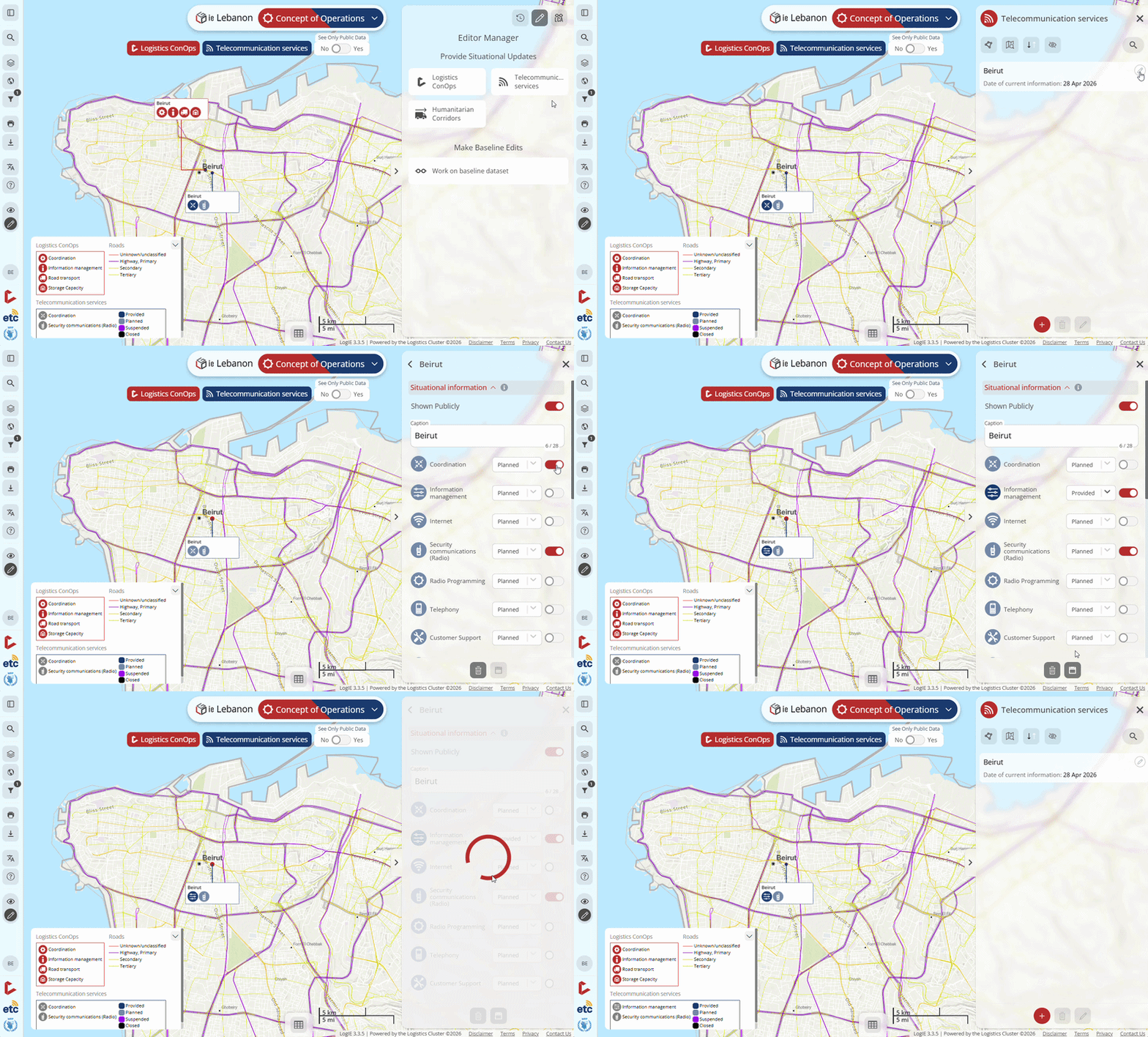
- Click on "Telecommunications services" under Provide situational updates in the Editor Manager.
- You have two options to locate the box you want to modify:
- Find the box in the list and click the pencil icon next to it.
- Click directly on the box on the map, then select the pencil icon in the popup (located at the top right).
- Now you can add, remove, or update the services by modifying the form that appears. After making your changes, click on "Save and Confirm Status."
4) Deleting a box on the map (removing all services from a location)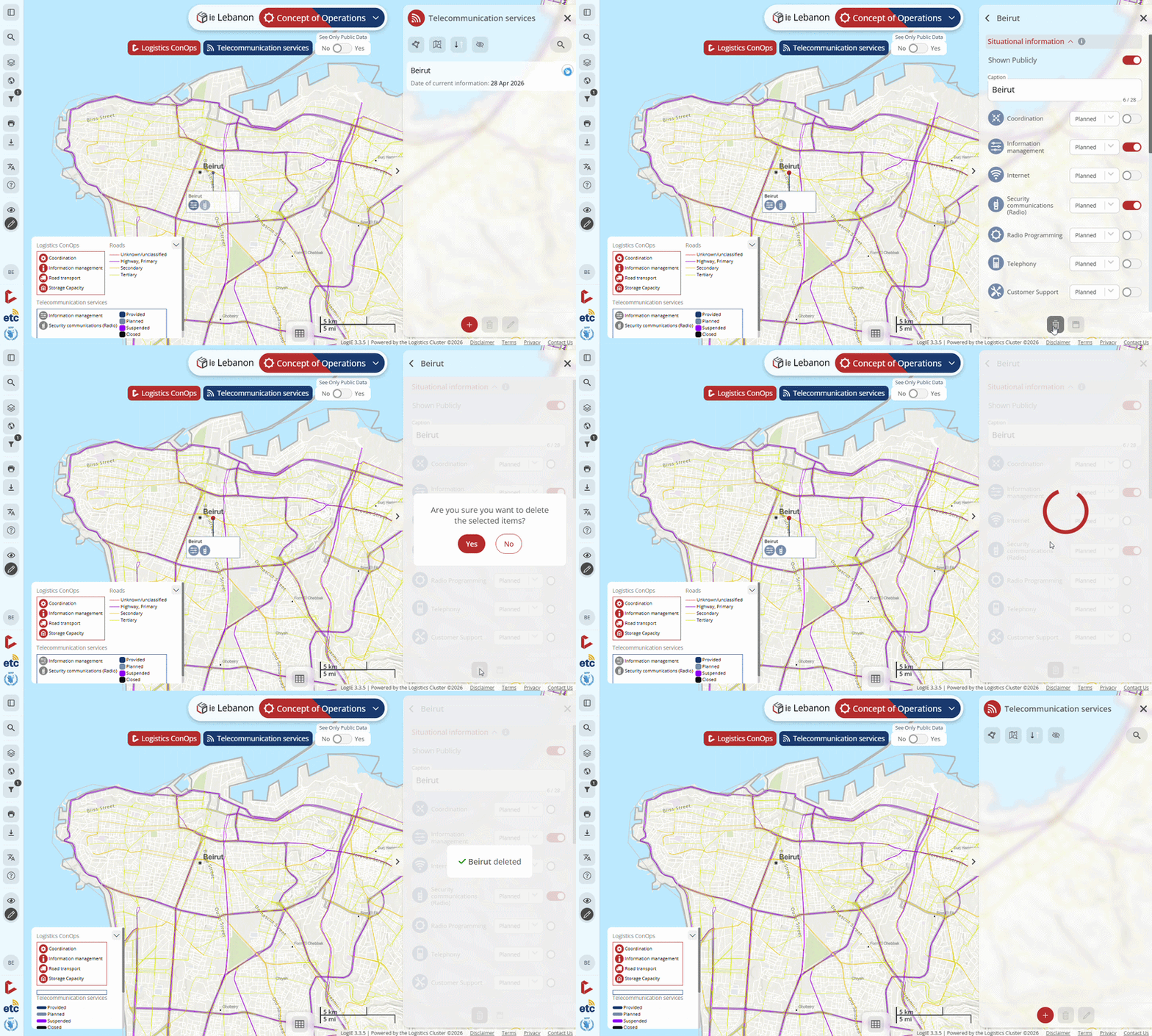
- You have two options to locate the box you want to delete:
- Find the box in the list and click the pencil icon next to it.
- Click directly on the box on the map, then select the pencil icon in the popup (located at the top right).
- Click the bin (delete) icon in the Editor Panel.
- Confirm the deletion.
TIP: As an editor, the position where you place a box on the map is exactly how users will see it. You can drag boxes to move them and arrange the layout as you want it to appear.
